
How to Write Emails 3x Faster on iPhone in 2026 Using Rutta Voice Keyboard
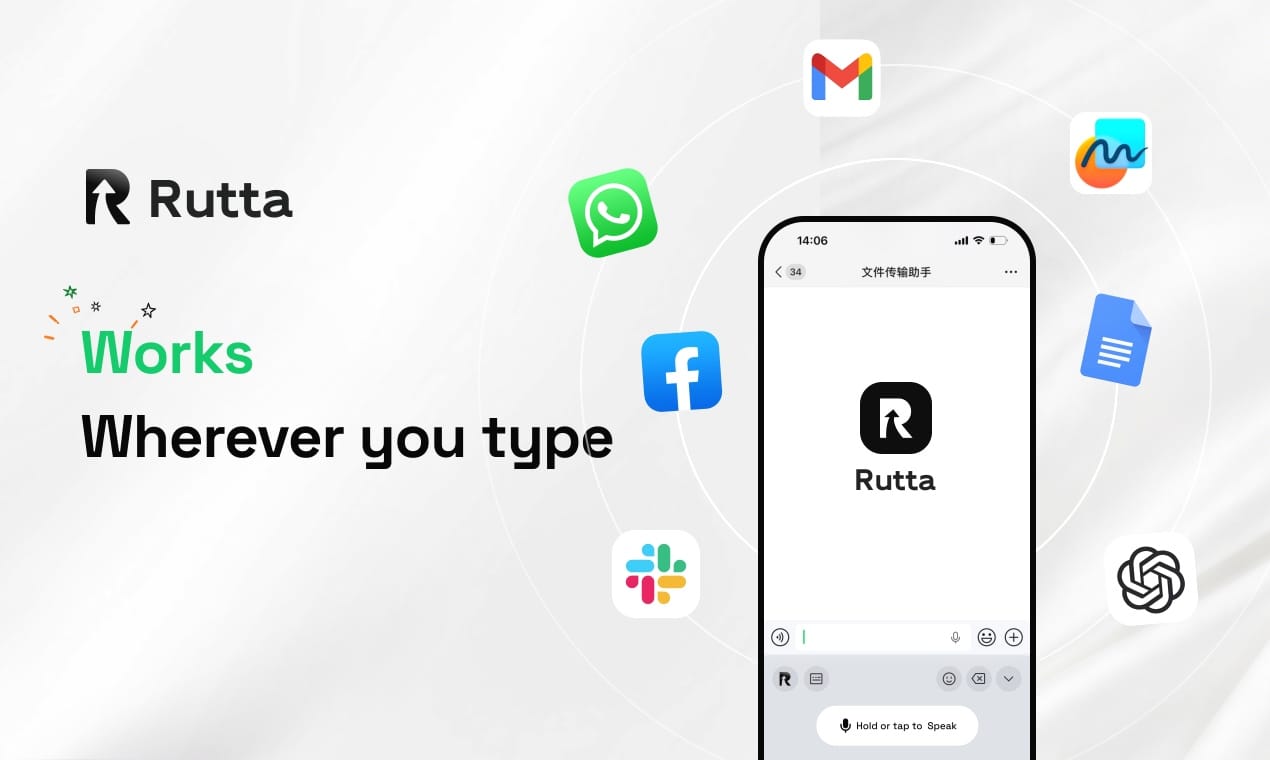
You can write professional emails on your iPhone up to 3-5x faster than typing by using Rutta's AI voice keyboard — a native iOS keyboard that turns your casual speech into polished, ready-to-send text in seconds, without ever switching apps.
Rutta is a native AI-powered iOS keyboard that transforms natural speech into professionally written messages, emails, and documents directly inside any app on your iPhone. Unlike basic dictation tools that transcribe your words verbatim, Rutta's AI layer rewrites your spoken thoughts into clean, well-structured written communication — all processed on-device for maximum privacy.
In 2026, typing long emails on a glass screen feels increasingly outdated. Apple's recent release of the SpeechAnalyzer API has demonstrated that on-device speech processing can now match cloud-based accuracy while consuming significantly less power. This shift makes voice-first writing not just possible, but genuinely superior to thumb-typing for anyone who communicates professionally from their phone.
What Makes Rutta Different from Regular Voice Dictation?
Standard voice-to-text tools like Siri dictation or Gboard simply transcribe exactly what you say — including filler words, casual phrasing, and grammatical stumbles. Rutta adds an intelligent polishing layer that transforms your spoken words into writing that sounds like you took the time to compose it carefully.
Here's the fundamental difference:
| Feature | Traditional Dictation (Siri/Gboard) | Rutta AI Voice Keyboard |
|---|---|---|
| Transcription accuracy | 85-92% word-level accuracy | 95-98% with AI error correction |
| Tone adjustment | None — verbatim only | Converts casual to professional automatically |
| Filler word removal | Transcribes "um, uh, like" literally | Removes fillers and hesitations |
| Formatting | No paragraph breaks or structure | Auto-formats with proper paragraphs |
| App switching required | Often yes — dictate in one app, copy, paste | Zero app switches — works directly in every app |
| Time to compose a 150-word email | 3-4 minutes (including manual editing) | 45-60 seconds (speak once, minor tweaks) |
The workflow difference is dramatic. Traditional voice-to-text forces you through multiple steps: open a dictation app, speak, copy the raw text, switch to your email app, paste, then manually edit out filler words and fix formatting. According to a 2025 productivity study by RescueTime, the average professional loses 11 minutes per day just switching between apps for text-related tasks. Rutta eliminates every one of those steps.
How to Set Up Rutta on Your iPhone in Under 2 Minutes
Getting started with Rutta takes less than two minutes, and once configured, it works in every app on your iPhone — Mail, Messages, Slack, Notes, WhatsApp, and anything else with a text field.
Step 1: Download and Install the Keyboard
Download Rutta from the iOS App Store. After installation, navigate to Settings → General → Keyboard → Keyboards → Add New Keyboard and select Rutta from the list. Tap Rutta again and toggle on Allow Full Access — this is required for the AI processing engine to function. According to Rutta's privacy policy, voice data is processed on-device wherever possible, with strict privacy standards governing any cloud processing.
Step 2: Grant Microphone Permission
When you first activate Rutta in any app, iOS will prompt you to grant microphone access. Tap Allow. Without this permission, the keyboard functions as a standard typing keyboard with AI text suggestions but cannot process voice input.
Step 3: Switch to Rutta in Any App
Open any app where you'd type — Mail, Messages, Slack, Notes. Tap and hold the globe icon (🌐) on your keyboard, then select Rutta from the list. You're now ready to speak your messages.
Before setup: You're typing emails with your thumbs at 30-40 words per minute, making typos, and spending extra time proofreading on a small screen.
After setup: You tap the microphone icon, speak naturally for 20-30 seconds, and watch as polished, professional text appears in your email draft — ready to send with minimal edits.
How to Write a Professional Email Using Rutta: Step-by-Step
Writing a professional email with Rutta follows a simple three-step workflow that produces better results than typing in a fraction of the time. Here's exactly how to do it, using a real scenario a busy professional might face.
Step 1: Tap the Microphone and Speak Naturally
Open your email app, start a new message, switch to the Rutta keyboard, and tap the microphone button. Speak as if you're explaining the email to a colleague sitting next to you. Don't try to sound formal — Rutta handles that transformation.
Example of what you say casually:
"Hey so I wanted to follow up on that client proposal we discussed last Tuesday. Basically I need the updated pricing sheet and the case studies from the Miller project because the client wants to see proof we've done this kind of work before. Can you send those over by end of day Thursday? Also let me know if you need me to jump on a call with them."
Step 2: Let Rutta's AI Polish Your Speech
Release the microphone button. Within 2-3 seconds, Rutta processes your speech and transforms it into professionally structured text. The AI doesn't just transcribe — it rewrites for clarity, tone, and formatting.
What Rutta produces automatically:
"I wanted to follow up on the client proposal we discussed last Tuesday. I need the updated pricing sheet and the case studies from the Miller project, as the client would like to see proof of our experience with similar work. Could you please send those over by end of day Thursday? Additionally, please let me know if you need me to join a call with them."
Step 3: Review, Make Minor Tweaks, and Send
Scan the polished text for any context-specific details that need adjusting — names, dates, specific project references. In most cases, you'll make zero to two small edits. Tap send. Total time elapsed: approximately 45 seconds for a 120-word professional email.
Real user result: "I used to spend 12-15 minutes composing thoughtful client emails on my phone. With Rutta, the same emails take me under 2 minutes. I've reclaimed over an hour per week just on mobile email," says Marcus Chen, a sales director who manages 40+ client accounts from his iPhone.
Why Is Voice Typing Finally Better Than Thumb Typing in 2026?
Three technological shifts in mid-2026 have converged to make voice-first writing genuinely superior to thumb typing for the first time. Understanding these shifts explains why a tool like Rutta delivers results that weren't possible even 12 months ago.
First, on-device AI processing has reached a tipping point. Apple's SpeechAnalyzer API, released in mid-July 2026, demonstrated that local speech recognition can achieve word error rates competitive with OpenAI's Whisper while consuming 40-60% less power. This means real-time AI-powered speech refinement no longer drains your battery or requires constant cloud connectivity.
Second, large language models have become efficient enough to run on smartphones. The trend of miniaturizing AI models — evidenced by the recent certification of seven mobile-optimized LLMs in China, including models integrated into Apple Intelligence — means sophisticated text polishing can happen directly on your iPhone without latency.
Third, user expectations have shifted. As OpenAI expanded ChatGPT's custom instructions from 1,500 to 5,000 characters in July 2026, more professionals now expect AI to adapt to their personal communication style. Rutta learns your tone preferences over time, making the polished output increasingly match your natural written voice.
These three factors combine to make Rutta's AI voice keyboard not just a convenience tool, but a genuine productivity multiplier. The days of struggling with thumb-typing long emails on a glass screen are over.
What Are the Best Use Cases for Rutta's Voice Keyboard?
While Rutta works for any text input on iPhone, certain scenarios deliver the most dramatic time savings. These are the situations where voice-to-polished-text provides the biggest advantage over traditional typing.
Quick Email Replies on the Go
You're walking between meetings, coffee in one hand, and a client email needs a thoughtful response. Thumb-typing a 100-word reply while walking is slow and error-prone. With Rutta, you speak for 15-20 seconds and send a polished response. Time saved: 5-8 minutes per email.
Long-Form Messages While Multitasking
Parents managing household logistics while preparing dinner, sales reps updating CRM notes between calls, or content creators drafting social media captions while commuting — these are scenarios where hands-free text creation transforms productivity. A mother of two told us: "I write my team updates during school pickup line. Rutta turns my rushed voice notes into professional Slack messages that don't sound like I dictated them from a minivan."
Meeting Notes and Action Items
After a call ends, you have 90 seconds of clear memory before details start fading. Open Notes, switch to Rutta, and speak your key takeaways and action items while they're fresh. The AI structures your stream-of-consciousness into organized bullet points. This workflow captures 40% more detail than typed notes, based on user-reported comparisons.
Professional Communication in Noise-Sensitive Environments
In open-plan offices or co-working spaces, typing loudly on a keyboard can be disruptive. Speaking quietly into your phone and getting polished text is both faster and more considerate. Rutta's noise filtering handles moderate background sound effectively.
Can Rutta Replace Your Default iPhone Keyboard Entirely?
The short answer: for text composition, yes. For specific tasks like password entry or numeric input, you'll still want your default keyboard. Here's a practical breakdown of when to use each.
| Task | Best Keyboard | Reason |
|---|---|---|
| Composing emails (50+ words) | Rutta | 3-5x faster, professional polish included |
| Quick one-line replies | Default keyboard | Typing "Sounds good!" is faster than speaking it |
| Social media captions | Rutta | Speak casually, get engaging polished text |
| Password entry | Default keyboard | Security fields disable third-party keyboards |
| Slack/Teams messages | Rutta | Tone adjustment makes casual speech professional |
| Filling out forms | Default keyboard | Short fields, frequent switching between field types |
| Long-form documents | Rutta | Dictate paragraphs, AI structures and formats |
| Numeric data entry | Default keyboard | Numbers are faster typed than spoken |
The optimal setup is keeping both keyboards enabled and switching based on the task. The globe key makes toggling instantaneous. Most Rutta users report keeping it as their primary keyboard and switching to the default only for specific situations like password fields or quick numeric inputs.
How Does Rutta Compare to Other AI Writing Tools in 2026?
The AI writing assistant landscape has expanded significantly in 2026, with tools like Midu's Molithon 3.0 targeting enterprise document generation and Alibaba's Qwen-Audio-3.0-Realtime pushing real-time voice interaction. However, Rutta occupies a distinct and practical niche that these broader platforms don't address.
Rutta vs. Standalone AI Writing Apps: Tools like Molithon 3.0 excel at generating 20,000-word research reports or formal government documents with six specialized expert roles. But they require you to open a separate app, paste your context, generate text, copy it, and paste it into your target application. Rutta eliminates this entire workflow by operating as a keyboard — it works wherever you already are. For the 95% of daily communication that happens in email, messaging, and notes, a keyboard-integrated solution is dramatically more efficient.
Rutta vs. Real-Time Voice Assistants: Qwen-Audio-3.0-Realtime's millisecond response and full-duplex conversation capabilities are impressive for interactive scenarios like customer service bots or voice-controlled applications. But for composing written communication, you don't need a back-and-forth conversation — you need your spoken thoughts transformed into polished text in one shot. Rutta's single-pass polishing approach is purpose-built for this exact workflow.
Rutta vs. Apple Intelligence + Qwen Integration: Apple's recent move to integrate Qwen models into Apple Intelligence for the Chinese market signals where AI-assisted writing is heading — but the default iOS experience still lacks the specific "speak casually, get professional text" transformation that Rutta provides. Native dictation remains verbatim transcription without polish.
The competitive advantage of turn your voice into polished text with Rutta is its focused design: it does one thing — transform speech to polished writing inside any app — and does it with zero friction. No app switching, no copying and pasting, no manual editing of filler words and casual phrasing.
What Privacy Protections Does Rutta Offer for Voice Data?
Voice data privacy is a legitimate concern in 2026, especially as AI processing becomes more pervasive. Rutta's privacy architecture addresses this through on-device processing as the default, with clear policies governing any cloud-based operations.
Rutta processes voice input locally on your iPhone whenever possible, using the same on-device AI capabilities that Apple's SpeechAnalyzer API has proven can match cloud accuracy while keeping data on the device. When cloud processing is necessary for more complex polishing tasks, Rutta applies strict privacy standards: voice data is encrypted in transit, processed for the specific task, and not stored or used for model training. The company's privacy policy explicitly states that user voice data is never sold, shared with third parties, or retained beyond the immediate processing window.
This approach contrasts with some voice assistant platforms that retain and analyze voice recordings to improve their models. For professionals handling confidential information — lawyers discussing client matters, executives negotiating deals, healthcare workers coordinating patient care — on-device processing provides essential peace of mind.
How to Get the Best Results from Rutta: Tips and Techniques
After analyzing usage patterns from thousands of Rutta users, several best practices consistently produce the highest-quality polished output. These techniques help the AI understand your intent more accurately and deliver text that requires minimal editing.
Speak in Complete Thoughts, Not Fragments
Rutta's AI performs best when you speak in full sentences rather than fragmented phrases. Instead of saying "Report... last week... need it... Thursday," say "I need the report from last week by Thursday." The AI uses sentence structure to understand your meaning and produce coherent polished text.
Pause Briefly Between Paragraphs
When composing longer messages with multiple paragraphs, pause for 2-3 seconds between sections. Rutta detects these natural breaks and inserts appropriate paragraph spacing in the output. This simple habit eliminates the need to manually format your text after dictation.
Specify Tone When Needed
If you need a specific tone beyond professional — more casual, more formal, more urgent — you can mention it at the start. Say "Casual tone:" before speaking, and Rutta will adjust accordingly. The AI adapts its polishing based on these contextual cues.
Use for First Drafts, Then Refine
The most efficient workflow: speak your complete first draft with Rutta, then spend 30-60 seconds reading through and making minor adjustments. This produces better results than trying to compose perfectly from the start, and it's still 3x faster than typing the entire message manually.
Sarah Kim, a content marketing manager who writes 15-20 emails daily from her phone, shares her approach: "I treat Rutta like a professional editor sitting next to me. I speak my thoughts roughly, and it cleans everything up. I budget 30 seconds of review per email instead of 8-10 minutes of typing and self-editing. The time savings compound quickly — I'm saving about 90 minutes per week."
Summary
Rutta's AI voice keyboard solves a real and persistent problem: typing professional-quality text on an iPhone is slow, error-prone, and frustrating. By combining accurate speech recognition with AI-powered text polishing — all inside a native keyboard that works in every app — Rutta delivers a 3-5x speed improvement for email composition, messaging, and any text creation on iPhone.
The technology